---
title: IoT Wi‑Fi Troubleshooting Guide
description: "Step-by-step checks to diagnose and fix IoT device Wi‑Fi issues: power, credentials, coverage, updates, and when to reset."
image: https://assets.seobotai.com/cdn-cgi/image/quality=75,w=1536,h=1024/tekdash.com/6ade98a3ed9b77d3a5c5f6de-1792974640898.jpg
---
[](https://tekdash.com)
- OUR SERVICES
## TekDash Service Offerings
Tech Help On Your Terms.

### [Ethernet Cable Installation Quality home and business network cabling solutions.](https://tekdash.com/tech-support/new-ethernet-cable-installation)
### [Network Troubleshooting Expert networking services for residential and commercial use.](https://tekdash.com/tech-support/network-troubleshooting)
### [New WiFi Network Setup Effortless Connectivity Solutions for Your Home or Office.](https://tekdash.com/tech-support/new-wifi-network-setup)
### [Wireless Signal Extension Network Connectivity Without Boundaries](https://tekdash.com/tech-support/wireless-signal-extension)
### [Audio/Video Installation & Support Creating Immersive Audio and Video Experiences.](https://tekdash.com/tech-support/audio-video-support-and-troubleshooting)
### [Computer Troubleshooting Professional computer assistance and problem-solving](https://tekdash.com/tech-support/computer-troubleshooting)
### [Computer Virus Removal Safeguard Your Systems and Boost Efficiency](https://tekdash.com/tech-support/computer-virus-removal)
### [Printer Setup Streamlined Solutions for Seamless Printing Operations](https://tekdash.com/tech-support/printer-setup)
- ABOUT US
- [BLOG](https://tekdash.com/blog)
REQUEST SERVICE
Wifi
# Wi-Fi Problems on IoT Devices
Step-by-step checks to diagnose and fix IoT device Wi‑Fi issues: power, credentials, coverage, updates, and when to reset.
[Shawn Varughese](https://tekdash.com/blog/author/shawn-varughese-1)
Oct 26, 2026
---
**When a smart device goes offline, I check power and test the same Wi-Fi on a phone before changing settings.** One offline device points me toward that device; several send me looking at the router, internet connection, or a cloud outage.
Here’s the order I follow:
- **Check the basics:** Power, cables, batteries, Wi-Fi passwords, supported bands such as 2.4 GHz, and app permissions.
- **Test the connection:** Compare performance near the router and in the usual location, then pause heavy network traffic.
- **Check each device’s tasks:** Camera video and alerts, thermostat controls, and speaker playback or grouping.
- **Update before resetting:** Follow the manufacturer’s instructions, save settings and recordings, and use a factory reset *only after other checks fail*.
My final check: \Does the device stay connected during normal use?\ I test again after several hours - or overnight if that’s when it drops - and keep error notes for support if the problem returns.
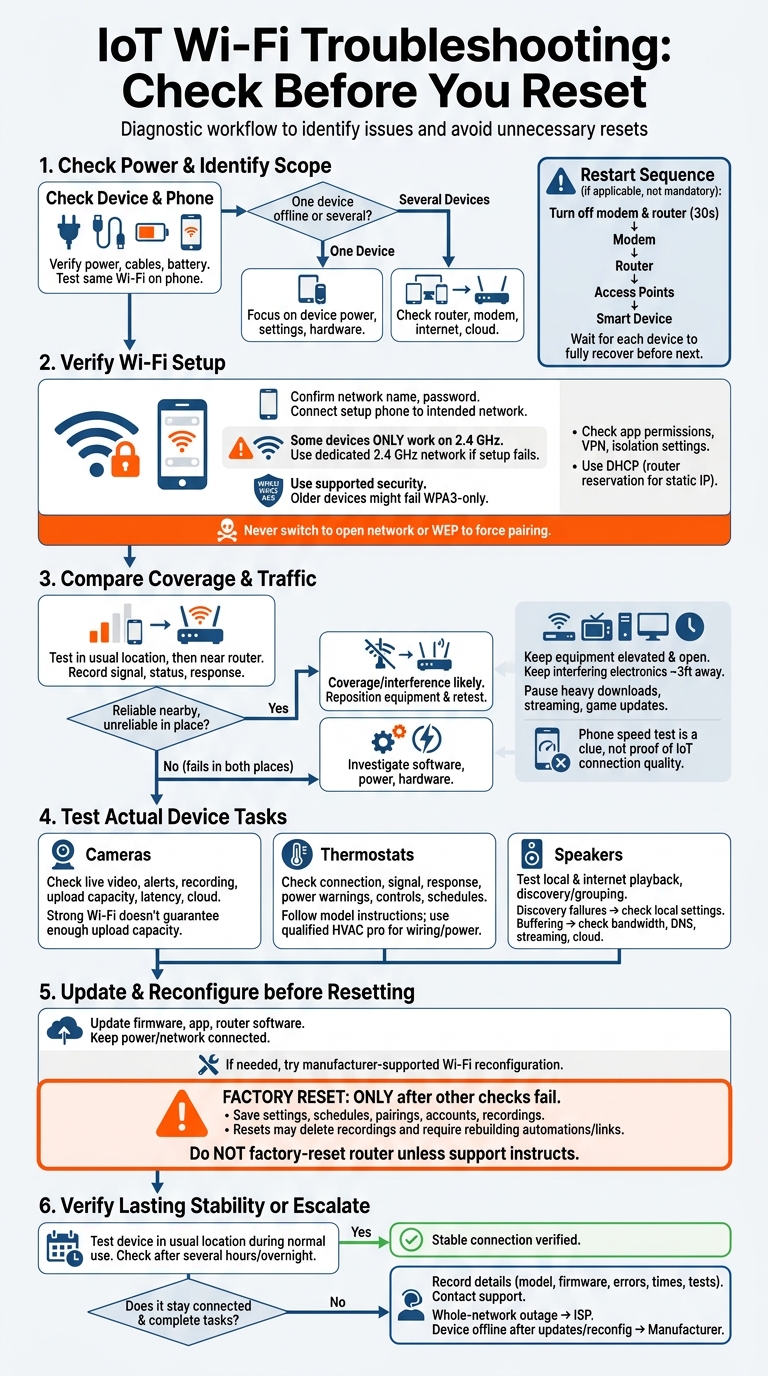
IoT Wi-Fi Troubleshooting: Check Before You Reset
## How to fix iot connectivity problems and reduce network latency at home
###### sbb-itb-df22834
## Check Power, Cables, and Wi-Fi Settings
If other devices are online, focus on the offline device. Start with its power supply, cables, and saved Wi-Fi settings.
### Inspect Connections and Restart Devices
Test the device’s outlet and inspect its power adapter and cables. For cameras and thermostats, check the battery or HVAC power source.
| Symptom | Likely cause | Test | Fix |
| --- | --- | --- | --- |
| One device offline | Device power, cable, Wi-Fi settings, or hardware | Test the outlet; check the router’s connected-device list | Restore power, replace damaged cables, or correct saved Wi-Fi settings |
| Several devices offline | Access point or uplink failure | Check the access point’s lights and Ethernet uplink | Reseat its cables and restart the affected access point |
| Intermittent disconnections | Unstable power, weak coverage, or interference | Note when and where drops happen; test near the router | Secure power connections or address coverage if moving closer helps |
Turn off the modem and router for **30 seconds**. Start the modem first, followed by the router, then any access points or extenders. Wait for each device to fully recover before starting the next, and restart the smart device last. **Restart first; factory reset only after other checks fail.**
### Verify Wi-Fi Credentials and Setup Requirements
If power and cables check out, review the saved Wi-Fi details in the manufacturer’s app. Confirm the exact network name and password, including capitalization and any accidental spaces. Connect your setup phone to the intended network.
Check which Wi-Fi bands the device supports. Some devices work ONLY on **2.4 GHz**. Try the normal setup process first. If that fails, use a clearly identified 2.4 GHz network only as the manufacturer recommends.
If the password is correct but pairing still fails, check security compatibility. Use supported **WPA3-Personal or WPA2-Personal with AES** settings. Older devices may not connect to a WPA3-only network. Never switch to an open network or WEP to force pairing.
If the app can’t find the device, check **guest or isolation settings**. Use a manufacturer-supported network setup that permits the local communication the device needs, rather than weakening security across your home.
Also check the app’s required local-network, [Bluetooth](https://www.bluetooth.org/en-us), nearby-device, or location permissions. A VPN can block local discovery.
If the trouble started after replacing your router, review static IP settings. An outdated address may conflict with another device or the new network. Use **DHCP** unless the manufacturer requires a static IP. If the device needs a fixed address, set a DHCP reservation on the router.
## Test Coverage and Device Behavior
### Check Signal Strength and Network Traffic
After checking power, credentials, and setup, **compare how the device works in its installed location and near the router**. Temporarily move it closer to the router or mesh access point without changing other settings. Change one variable at a time. In both locations, record signal strength, connection status, response time, and disconnections.
If the device works reliably nearby but fails where it’s installed, coverage or interference is more likely than a device fault. If it fails in both places, check software, power, or hardware. For fixed devices, move the router or access point instead. Use this same comparison for cameras, thermostats, and speakers.
Look for obstacles between the device and router: walls, floors, concrete, brick, metal, mirrors, appliances, cabinets, and large plumbing fixtures. Check for nearby microwaves, cordless-phone bases, baby monitors, Bluetooth equipment, and other wireless electronics, too. Place the router or device in an open, elevated spot, and keep interfering electronics about 3 feet away when possible.
Next, pause large downloads, video streaming, cloud backups, game updates, and security-camera uploads. Then repeat the test. A phone or tablet speed test at the installation spot can help you compare results, but it **doesn’t measure the device’s actual connection**. Symptoms alone don’t confirm the cause.
| Observable symptom | Likely cause | Verification step | Recommended fix |
| --- | --- | --- | --- |
| Device disconnects mainly in a distant room | Weak signal or obstructions | Move it near the access point and compare signal and stability | Reposition the router or access point; consider a compatible mesh point or signal extender if coverage remains poor |
| Failures occur near a microwave or other wireless electronics | Interference | Temporarily move or disable nearby equipment and retest | Increase separation, relocate the device, and enable automatic channel selection where supported |
| Several devices slow down or disconnect during heavy use | Congestion or limited upload capacity | Pause streaming, backups, and other heavy traffic, then repeat the test | Reduce simultaneous traffic; improve capacity if demand consistently exceeds it |
### Run Checks for Cameras, Thermostats, and Speakers
Use the same location test for each device type, then check the behavior tied to its symptoms.
**Cameras:** Compare live view at the installed location and near the router. If it works near the router but fails in place, coverage or interference is more likely. If the local connection is strong but live view still fails, compare upload speed and latency. Check whether other cameras upload continuously and whether the manufacturer’s cloud service is unavailable. Record timestamps, error messages, video quality, and whether local recording continues. **Strong Wi-Fi doesn’t guarantee enough upload capacity for cloud video.**
**Thermostats:** Check the network screen or app for connection status, signal strength, response time, and power warnings. On supported models, weak signal or ping above 1,000 can indicate a network issue. Move the router or test the thermostat’s network connection without removing it from its base or changing HVAC wiring. Follow the model’s instructions for wiring, power, or system-compatibility issues, or contact a qualified HVAC professional.
**Speakers:** Test local playback, internet playback, and discovery or grouping separately. If one speaker is missing from the app or can’t join a group while another works, check local discovery, account, multicast, or network-isolation settings. If the app finds the speaker and controls work, but internet playback buffers, check bandwidth, DNS, the streaming service, or cloud availability. Test one speaker at a time, recording app errors and indicator lights. Before resetting, save the model, location, access point, band, indicator lights, exact errors, and disconnect times.
## Update Software and Address Persistent Problems
### Install Updates Before a Factory Reset
If power, credentials, compatibility, and coverage all check out, **update the device before resetting it**. Look for updates in the device’s settings, its app, and the router or access point’s administration page. Follow the manufacturer’s instructions for your exact model, and choose a time when a brief interruption won’t cause problems. During installation, keep the device powered on, leave the app open, and don’t interrupt the network.
If updates fail, try the manufacturer’s Wi-Fi reconfiguration steps before a reset. Some models let you change networks in the app; others require you to add the device again.
Before resetting, save your settings, schedules, room assignments, accessory pairings, and account details. Have your login credentials and recovery methods ready. **Save important camera recordings first**, since some resets permanently delete video history. You should also expect to rebuild automations and account links.
Reboot the router, but don’t factory-reset it unless support tells you to. A factory reset erases network settings. If support recommends one, back up the configuration if that option is available, and make sure you have your internet provider’s connection details.
### Get Help With Recurring Wi-Fi Problems
If the problem keeps coming back, contact the right support team. Reach out to your internet provider when the outage affects the whole network. Contact the device manufacturer if only one device stays offline after updates and manufacturer-supported reconfiguration.
Give support your firmware and app versions, exact error text, outage dates and times, recent network changes, and tests you’ve already completed. These details can help them avoid repeating steps you’ve already tried.
For recurring drops or setup problems, [TekDash](https://tekdash.com) offers remote and on-site Wi-Fi and smart-home troubleshooting by certified technicians. Share your device and router models, affected rooms, and test notes. Ask for a detailed quote and timeline before work begins.
## Conclusion: Verify Stable Connections
After applying the fixes above, check that each device stays online during normal use. **Save a factory reset for last.**
Test each device **in its usual location**, not just next to the router. Check camera live video and motion alerts, thermostat setpoint changes and schedules, and speaker voice commands and playback.
Check again after several hours - and overnight if that’s when failures happen. A brief reconnection isn’t enough: devices need to stay reachable and carry out their usual tasks. If connection drops return, record when and where they happen and contact support instead of repeating resets or manual reconnects.
## FAQs
### Can one Wi-Fi name serve both bands?
Yes, your router can use **one network name for both the 2.4 GHz and 5 GHz bands**, but separate names may help keep connections stable. Some smart home devices can struggle when switching between bands, leading to connection problems.
For devices like cameras and thermostats, you can give each band its own name in your router settings - for example, **YourHome\_2.4G** and **YourHome\_5G**. [TekDash](https://tekdash.com/) can help with network setup and optimization to support more stable connections.
### Why do my smart devices disconnect overnight?
Smart devices can disconnect overnight because of Wi-Fi interference, weak signals, or an unstable network. Outdated firmware, incorrect network settings, and power issues can also cause connection drops.
Start by **restarting your router and smart devices**. Then update their firmware and check the Wi-Fi signal strength. If the connection keeps dropping, TekDash can help with network support, Wi-Fi optimization, and smart home setup.
### Will my smart devices work without internet?
Most smart devices need an internet connection to work properly. Some connect through a local hub using [Zigbee](https://csa-iot.org/all-solutions/zigbee/) or [Z-Wave](https://z-wavealliance.org/), but these hubs typically still need internet for setup, remote access, updates, voice assistants, and automated routines. **Without internet, you may lose remote control and instant notifications.**
TekDash offers on-site or remote support to troubleshoot connection issues and help you set up your devices correctly.
## Related Blog Posts
- [WiFi Settings for Video Doorbell Apps](https://tekdash.com/blog/wifi-settings-for-video-doorbell-apps/)
- [Persistent WiFi Interference: Causes and Solutions](https://tekdash.com/blog/persistent-wifi-interference-causes-and-solutions/)
- [Smart Home WiFi Interference: Causes & Fixes](https://tekdash.com/blog/smart-home-wifi-interference-causes-fixes/)
- [Checklist for Reducing WiFi Interference](https://tekdash.com/blog/checklist-for-reducing-wifi-interference/)
[Wifi](https://tekdash.com/blog/tag/wifi) [Ethernet Installation](https://tekdash.com/blog/tag/ethernet-installation)
## Similar posts
### **Popular Blogs**

Tech help on your terms.
### Services
- [Locations](https://tekdash.com/us)
- [Pricing](https://tekdash.com/faqs)
- [Remote Help](https://tekdash.com/remote-support)
### Learn
- [About Us](https://tekdash.com/blog/building-a-better-tech-services-experience-for-dc-maryland-virginia)
- [Blog](https://tekdash.com/blog)
- [Cookie Policy](https://www.cookiepolicygenerator.com/live.php?token=vICt2apAZIt8xNOnFdvlNTRCLJSQ4VZh)
### Company
- [Leave a Review](https://www.google.com/search?q=tekdash&ei=Pu1kYMXZIsu4gQbj5JSQBA&oq=tekdash&gs_lcp=Cgdnd3Mtd2l6EAMyCwguEMcBEK8BEJMCOggIABCwAxDNAlCMQFiaSWDuTGgBcAB4AYABgAKIAfEOkgEFMC45LjKYAQCgAQGqAQdnd3Mtd2l6yAEBwAEB&sclient=gws-wiz&ved=0ahUKEwjF8L-owNvvAhVLXMAKHWMyBUIQ4dUDCA0&uact=5#lrd=0x89b7c9c6ee8b7d77:0xe96bc7203aa16d4e,1,,,)
- [Join the Team](https://form.jotform.com/221505781315047)
- [Privacy](https://tekdash.com/hubfs/legal/privacy_policy.pdf)
- [Terms](https://tekdash.com/hubfs/legal/privacy_policy.pdf)
© 2026 TekDash, Inc. All rights reserved.
[Powered by Atlas - a B2B SaaS HubSpot theme](https://www.kalungi.com/atlas-hubspot-theme-for-b2b-saas-software)
```json
{
"@context" : "https://schema.org",
"@type" : "BlogPosting",
"author" : {
"@type" : "Person",
"name" : "Shawn Varughese",
"url" : "https://tekdash.com/blog/author/shawn-varughese-1"
},
"datePublished" : "2026-10-26T00:29:59.000Z",
"headline" : "IoT Wi‑Fi Troubleshooting Guide",
"image" : [ "https://assets.seobotai.com/cdn-cgi/image/quality=75,w=1536,h=1024/tekdash.com/6ade98a3ed9b77d3a5c5f6de-1792974640898.jpg" ],
"mainEntityOfPage" : {
"@id" : "https://tekdash.com/blog/wifi-problems-iot-devices",
"@type" : "WebPage"
},
"publisher" : {
"@type" : "Organization",
"logo" : {
"@type" : "ImageObject",
"url" : "https://tekdash.com/hubfs/tekdash-logo-sm.png"
},
"name" : "TekDash"
}
}
```
```json
{
"@context" : "https://schema.org",
"@type" : "FAQPage",
"mainEntity" : [ {
"@type" : "Question",
"acceptedAnswer" : {
"@type" : "Answer",
"text" : "Yes, your router can use one network name for both the 2.4 GHz and 5 GHz bands, but separate names may help keep connections stable. Some smart home devices can struggle when switching between bands, leading to connection problems. For devices like cameras and thermostats, you can give each band its own name in your router settings - for example, YourHome_2.4G and YourHome_5G. TekDash can help with network setup and optimization to support more stable connections."
},
"name" : "Can one Wi-Fi name serve both bands?"
}, {
"@type" : "Question",
"acceptedAnswer" : {
"@type" : "Answer",
"text" : "Smart devices can disconnect overnight because of Wi-Fi interference, weak signals, or an unstable network. Outdated firmware, incorrect network settings, and power issues can also cause connection drops. Start by restarting your router and smart devices. Then update their firmware and check the Wi-Fi signal strength. If the connection keeps dropping, TekDash can help with network support, Wi-Fi optimization, and smart home setup."
},
"name" : "Why do my smart devices disconnect overnight?"
}, {
"@type" : "Question",
"acceptedAnswer" : {
"@type" : "Answer",
"text" : "Most smart devices need an internet connection to work properly. Some connect through a local hub using Zigbee or Z-Wave, but these hubs typically still need internet for setup, remote access, updates, voice assistants, and automated routines. Without internet, you may lose remote control and instant notifications. TekDash offers on-site or remote support to troubleshoot connection issues and help you set up your devices correctly."
},
"name" : "Will my smart devices work without internet?"
} ]
}
```