Wifi
WPA3 vs. WPA2: Best for Outdoor WiFi Security
Explore the key differences between WPA2 and WPA3 for outdoor WiFi security, including their strengths, vulnerabilities, and best use cases.
Lock down your router: change admin credentials, enable WPA3/WPA2, update firmware, disable risky features, and segment networks.
A weak router can put your whole business at risk. In this guide, I’d boil it down to 10 steps: change the admin login, use WPA3 or WPA2, set a long Wi‑Fi password, update firmware, turn off risky features, split guest traffic, separate business devices, review connected hardware, and use Ethernet for high-risk systems.
Here’s the short version: small businesses can lose $137–$427 per minute from downtime, and a cyberattack can cost more than $25,000 on average. At the same time, one survey cited in the article says 86% of users never changed their router admin password, and 89% never updated firmware. That leaves an easy way in.
If I wanted the fastest path to a safer setup, I’d focus on these 10 moves:
A few points stand out. Guest Wi‑Fi is not enough by itself. Business systems still need to be split from laptops, IoT gear, and visitor devices. And old router hardware that no longer gets updates should be replaced.
| Area | Basic choice | Better choice |
|---|---|---|
| Wi‑Fi security | WPA2-AES | WPA3 |
| Firmware | Manual checks | Auto-updates on |
| Network setup | One shared network | Guest + separated business segments |
| Critical systems | Wi‑Fi | Ethernet |
Bottom line: if you lock down the login, patch the router, remove risky features, and separate traffic, you cut a lot of common router risk without making the setup hard to manage.
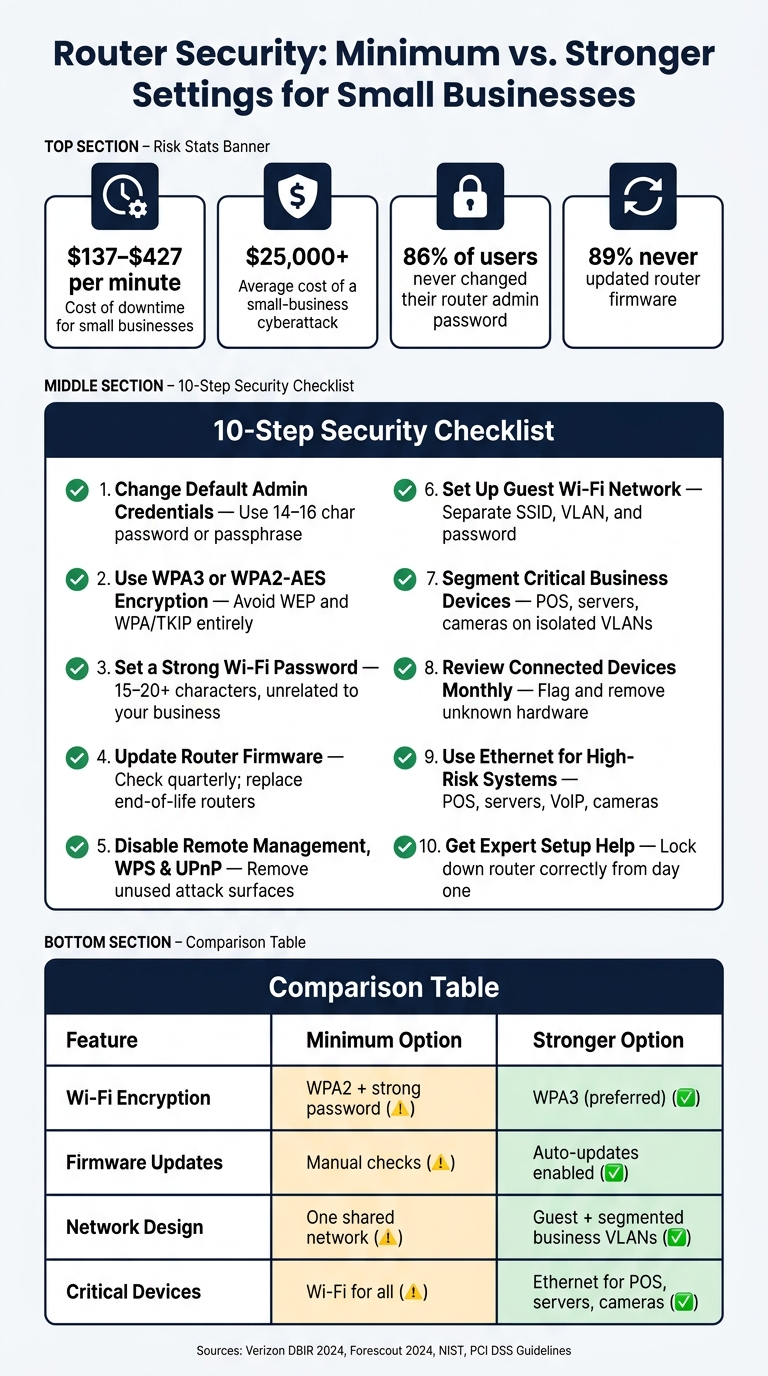
Router Security: Minimum vs. Stronger Settings for Small Businesses
Small businesses have more on the line than households. For a small business, downtime can cost $137–$427 per minute. So weak router security isn't just an IT headache. It's a direct threat to revenue and compliance.
The risk also spreads fast. One router connects pretty much everything, which means one weak point can open the door to a lot at once. If an attacker gets in, they may be able to reach POS terminals, cloud tools, email, and file shares in one shot.
The fallout looks different depending on the business. A retailer may deal with stolen card data. A medical practice may run into compliance problems. A law firm, agency, or accounting office could end up with leaked client files. And when card data is stolen through an insecure network, merchants can face fines and may even lose the ability to accept card payments.
The money hit can be brutal. A small-business cyberattack can cost more than $25,000 on average, and the damage doesn't stop there. Once trust slips, customers often walk away.
Hybrid work makes this messier. A hacked home router can act like a back door into company email, cloud apps, and file storage. The same problem shows up in home offices too, where consumer routers are often the only thing standing between business systems and the open internet.

The safest time to deal with router security is right at setup. That’s where a lot of small business network issues begin: factory settings stay in place, and the router goes live with weak defaults.
The numbers make that pretty clear. Survey data shows 52% of users have never changed factory settings at all. For attackers, that’s low-hanging fruit. They often scan for devices still using default credentials and then try to get in.
The good news? The fix isn’t complicated. Set up the router the right way from the start.
TekDash technicians can lock down the router, split business traffic into the right lanes, and fix common setup holes on day one. They also handle the hardware side, including dedicated Ethernet runs for payment terminals or servers. That kind of setup helps cut avoidable downtime and shrink your exposure.
Next, lock down the admin login itself.
Most routers come with default admin logins, and attackers often try those first. That’s a big deal because admin access gives control over the router itself, including encryption, device access, DNS, and network segmentation.
Change the admin username and password during setup. If your router lets you set a custom username, swap out admin for something less obvious. For the password, use 14–16 characters or a passphrase from a password manager.
Keep the admin password separate from the Wi-Fi password. If one gets exposed, you don’t want both layers going down with it. If the router only allows a password change, handle that right away. Then check the other settings that help protect the device, like firmware updates and remote-management controls.
After changing the credentials, test the new login and make sure the default one no longer works. Save the new details in a password manager or a locked internal record, and limit access to approved staff. Never switch back to the default password. That’s especially important during installation, vendor handoffs, and troubleshooting resets.
Next, lock down wireless access with strong encryption.
Wi‑Fi encryption protects the data moving between your devices and your router. If you skip it, someone nearby may be able to intercept emails, passwords, payment details, and customer records.
For small businesses, WPA2 is the minimum you should accept for secure Wi‑Fi. WPA3 goes a step further with better password handling and stronger protection against brute-force attacks. It uses SAE, which makes password cracking much harder.
Older options like WEP and the original WPA with TKIP are no longer safe. They’ve been broken, and U.S. cybersecurity guidance says to avoid them. If your router only supports WEP or WPA/TKIP, treat that as an urgent security problem and plan to replace the hardware.
To turn this on, sign in to your router’s admin panel and open the Wi‑Fi security settings. Then choose the best option your setup supports:
Skip any mixed WPA/WPA2 mode that allows TKIP. That setting can fall back to weaker ciphers, which is the last thing you want.
Here’s the short version:
| Protocol | Status | Suitable for Small Businesses? |
|---|---|---|
| WEP | Deprecated, easily cracked | No |
| WPA (TKIP) | Legacy, weaker than WPA2 | No |
| WPA2 (AES/CCMP) | Current baseline, widely supported | Yes - minimum acceptable |
| WPA3 | Latest standard, strongest protection | Yes - preferred where supported |
One more thing: encryption protects the wireless connection, but it doesn’t fix a weak password. After you set the protocol, use a strong, unique Wi‑Fi password too.
WPA2 or WPA3 secures the connection. This step secures access.
Put simply, encryption helps protect the data moving across your network, but your Wi-Fi password decides who can join in the first place. And weak passwords are still one of the easiest ways in. According to the 2024 Verizon Data Breach Investigations Report, 81% of hacking-related breaches leveraged stolen or weak passwords, and credential compromise remains a leading way attackers get in.
When it comes to Wi-Fi passwords, length matters more than stuffing in extra symbols. Current NIST guidance recommends at least 15 characters, and the U.S. Department of Defense recommends 20+ characters for WPA2/WPA3 networks. A long passphrase made from unrelated words is usually your best bet. Think simple, long, and hard to guess.
Skip anything connected to your business, like:
Your Wi-Fi password should also be used only for Wi-Fi. Don’t reuse it for your router admin login, email, or VPN.
That kind of reuse is a common mistake, especially in small businesses. One security firm found that 74% of passwords in its recaptured-credentials database were reused. So if your Wi-Fi password matches your admin login, email, or VPN, one leak can open more than one door.
A strong, separate password helps keep unauthorized users off your network. Store it in a password manager and share it only with current, approved staff. Then, if an employee leaves or a contractor wraps up, you can change the password and cut off access without affecting anyone who should still be connected.
Next, keep router firmware updated to close known security gaps.
Your router runs on software, and software has bugs. When manufacturers spot security flaws, they push firmware updates to patch them, improve stability, and sometimes add new protections. Skip those updates, and your router can stay open to known weaknesses that attackers already look for on internet-facing devices. This isn't just a "maybe someday" problem. Exposed routers get scanned all the time.
A 2024 Forescout study found that home and small-office routers often have dozens of exploitable vulnerabilities, and attackers regularly go after unpatched models in the wild.
If your router is still supported, check for updates every few months, or at least once per quarter. It's also smart to check after major security advisories. The basic process is pretty simple:
A couple of rules matter here. Only download updates from the vendor, and don't cut power during installation.
If your router no longer gets vendor updates, it's end-of-life. Replace it. Keeping unsupported hardware at the edge of your network is a direct risk, especially if your business handles customer or financial data. Swapping it out is part of routine router hardening.
After the firmware is up to date, turn off router features you don't use.
After you update the firmware, turn off router features you don't use. Remote management, WPS, and UPnP each create extra ways in. If you don't need them, don't leave them sitting there.
Remote management puts your admin panel on the internet. That's a bad trade. Attackers scan public IP addresses all the time looking for exposed admin pages, then try default passwords, known flaws, or stolen logins. Leave this setting off. If you need help from off-site, use a VPN instead.
WPS was meant to make Wi‑Fi setup easier. Instead of typing the full Wi‑Fi password, you connect with a button press or a PIN. The problem is the PIN. WPS PINs are weak and can often be brute-forced in just hours, even if your Wi‑Fi password is strong. Turn WPS off and that easier path disappears.
UPnP lets devices open inbound ports on their own. That might sound handy, but it also means software inside your network can expose services without you meaning to. Malware can abuse UPnP to do exactly that. If you switch it off, every open port stays there because you put it there. That's the way it should be. If a business system needs one of these features, write it down before turning it back on.
To disable all three, log in to the router from a computer on the office network. You’ll usually find them here:
If VoIP phones, POS terminals, or other critical systems rely on any of these settings, have TekDash audit the setup before you shut them off.
Once the router is locked down, the next move is to keep visitor traffic away from your business network. Guests should be able to get online without getting anywhere near your point-of-sale system or internal tools. That means using a separate guest network, not just handing out a different password. The guest network should have its own SSID and sit on a separate VLAN or subnet, with firewall rules that block access to internal devices like servers, printers, shared folders, and POS terminals.
It also helps to turn on client isolation, so guest devices can't talk to each other. On top of that, set bandwidth limits so someone streaming video or downloading large files doesn't bog down business traffic. This keeps guest activity away from POS terminals, printers, servers, and shared files.
If your business takes credit card payments, this separation is more than a good idea. PCI DSS requires guest wireless to be fully segregated from any network that can reach cardholder data. Protect the guest SSID with WPA3 or WPA2 and use a separate password. If you want more control, a captive portal can show usage rules before access is granted and log access for accountability.
If your router doesn't support VLANs or guest isolation, TekDash can check the setup and fix it.
Guest Wi‑Fi keeps visitors out. Internal segmentation does a different job: it stops one bad device from roaming across your network.
Inside your business, employee laptops, IoT devices, and general-use equipment shouldn't sit on the same network segment as POS terminals, servers, or other sensitive systems. When everything lives on one flat network, one infected device can potentially reach almost everything else.
Split devices into separate segments based on role and sensitivity. POS systems and payment terminals, file and database servers, security cameras, and other business-critical devices should be placed in their own restricted segments. Employee laptops and other general-use devices belong on separate segments.
Use VLANs and firewall rules to isolate staff, POS, and IoT traffic, with block-by-default rules between segments. That means only the traffic you specifically allow can pass through. For example, POS systems may need to connect to payment processors, but not to every other device on the network. The good news? Many business routers and firewalls can handle this without requiring separate physical networks.
This setup helps contain the fallout if one device gets compromised. In payment environments, this kind of isolation is treated as a core control, not a nice-to-have.
If your current router doesn't support VLANs, or if you're not sure how physical ports should map to the right segments, TekDash can review your setup and configure segmentation the right way - so each port ends up where it should. And if your router can't handle that cleanly, the next move is to check which connected devices are active.
Once you split traffic, check which devices are actually on each network segment. Open your router’s admin panel in a browser with its IP address, which is often 192.168.0.1 or 192.168.1.1. Then look for a page like Connected Devices, Device List, or DHCP Clients.
You’ll usually see details such as:
If your router doesn’t show much, use a second method. Free tools like Fing or the arp -a command in Command Prompt on Windows or Terminal on macOS/Linux can help you double-check what’s there.
It also helps to keep a current device inventory. A simple log with each device’s name, MAC address, location, and role makes weird entries stand out fast. Compare that list with what your router reports. If something doesn’t match, dig into it.
Pay close attention to generic labels such as "Unknown", "ESP-XXXX," or "Android-1234." Those names don’t always mean trouble, but they should get your attention. The same goes for devices that pop up late at night or in areas where no device should be active.
If you find something unfamiliar, move fast. Block its MAC address in the router, change the Wi-Fi password to kick it off the network, and inspect the office for rogue hardware. A hidden Wi-Fi extender or a tiny IoT device plugged into an outlet near the cash register is easy to overlook. Unauthorized hardware can expose sensitive data, so removing it fast matters.
Turn this into a routine check each month. If your business handles payment or client data, do it every week.
For systems that stay online all day, a wired connection cuts out one more Wi-Fi risk.
For devices that can't afford a weak spot, Ethernet is the safer pick. Wi‑Fi sends out signals that nearby attackers can detect and test. A wired Ethernet connection doesn't do that. To intercept traffic on a wired network, someone usually needs physical access to your cables or ports, which is a much harder hurdle to clear.
Start with the systems that carry the most risk or need the most uptime: POS terminals, accounting workstations, local servers, VoIP phones, and security cameras. Putting these on Ethernet cuts off wireless attack paths, including fake Wi‑Fi hotspots. It also means fewer critical devices sitting on Wi‑Fi, which lowers the number of ways someone can go after your router through the wireless layer.
There’s a performance upside too. Ethernet is more stable and has lower delay than Wi‑Fi because it isn’t thrown off by walls, competing wireless traffic, or interference from nearby networks and devices. For payment processing or live video monitoring, that kind of consistency matters day to day.
If running cable through your space sounds like a hassle, TekDash offers on-site Ethernet installation by certified technicians. Use Wi‑Fi for laptops, phones, and guest access. Give your critical equipment the wired connection it needs, and leave Wi‑Fi for the devices that actually need mobility.
Not every router setting carries the same weight. This quick reference shows the bare minimum and the stronger pick.
| Feature | Minimum Security Option | Stronger Security Option |
|---|---|---|
| Wi-Fi Encryption | WPA2 + strong unique password | WPA3 (stronger protection against password attacks and tampering) |
| Firmware Updates | Manual checks | Automatic updates on |
| Network Design | One shared network | Separate guest network |
| Critical Devices | Wi-Fi for all devices | Ethernet for critical devices |
A simple way to think about it: WPA2 is still okay when paired with a strong, one-of-a-kind password, but WPA3 gives you better defense against password attacks and tampering.
There is one catch. WPA3 may not work with older devices, so WPA2/WPA3 transition mode is a practical bridge during upgrades.
The same setup choices matter just as much in home offices, where work and personal devices often sit on the same router.
These router security steps matter at home too. For hybrid workers, the home router is part of the business perimeter. If the settings are weak, company data can be exposed. Home networks are part of the attack surface for remote workers. The same separation that helps protect an office network also helps protect a home office.
At home, one router often handles everything at once: work devices, personal laptops and phones, and smart-home gear. That mix can get messy fast. Keep work traffic on a separate SSID, and put everything else on guest or IoT networks. From there, extend that same segmentation to each connected device.
Many ISP gateways update on their own, which is helpful. Still, it’s smart to confirm that auto-updates are turned on and that the device still gets patches. If your router updates itself, verify that updates are enabled and still coming through. If not, check the firmware once each quarter.
For sensitive home-office devices like bookkeeping workstations, VoIP phones, and remote-desktop machines, use Ethernet when you can. It’s a simple move, but it follows the same router basics already covered above.
TekDash supports home and small-business network setups. A certified TekDash technician can help set up a separate work SSID, lock down router settings, and install Ethernet where a wired connection makes sense.
Router security doesn't need special tools or a complicated setup. The core steps are simple: change the admin login, use WPA3 or WPA2, create a Wi‑Fi password that's not easy to guess, keep the firmware up to date, and turn off remote management, WPS, and UPnP. Those basics help protect every device connected through the router.
Your router is the front door to your network. If that door is weak, the data and systems behind it are easier to reach.
For more complex networks, expert help can save time and cut down on setup headaches. TekDash can help with Wi‑Fi setup, Ethernet installation, signal extension, and troubleshooting.
The same approach applies to home offices and hybrid work setups. Start now.
Check whether your router is more than three years old, supports modern security standards like WPA3, and still gets firmware updates and security patches.
If it doesn't, your business network is at greater risk of cyberattacks. And an aging router may not be able to keep your connection safe anymore.
Not necessarily. You can often manage VLANs with a smart-managed switch, so a business-grade router isn't always required.
Business-grade routers are made for 24/7 use and higher performance. But for small offices, a smart-managed switch can be a more cost-effective way to add VLANs and QoS. TekDash can help with setup and configuration.
Move stationary, high-demand, and security-sensitive devices to Ethernet first. Start with business-critical gear like POS systems, surveillance cameras, and VoIP phones. Then look at desktop workstations, smart TVs, and gaming consoles.
For these devices, Ethernet usually delivers more stable performance, lower latency, and stronger protection than Wi-Fi.
Explore the key differences between WPA2 and WPA3 for outdoor WiFi security, including their strengths, vulnerabilities, and best use cases.
Smart router placement, channel tuning, and moving devices to 5/6 GHz eliminate workplace WiFi interference and restore reliable connectivity.
Explore the differences between WiFi and Ethernet for home and business use, focusing on performance, security, and cost considerations.