Wifi
Checklist for Reducing WiFi Interference
Small placement and settings changes eliminate most WiFi interference and restore fast, reliable home connectivity.
Identify and fix smart home WiFi interference: causes, diagnosis tips, channel choices, router placement, mesh upgrades, and pros.
WiFi interference is a common issue in smart homes, causing slow connections, unresponsive devices, and buffering. Here’s what you need to know:
For a stable smart home network, start with these steps and escalate to professional support if needed.
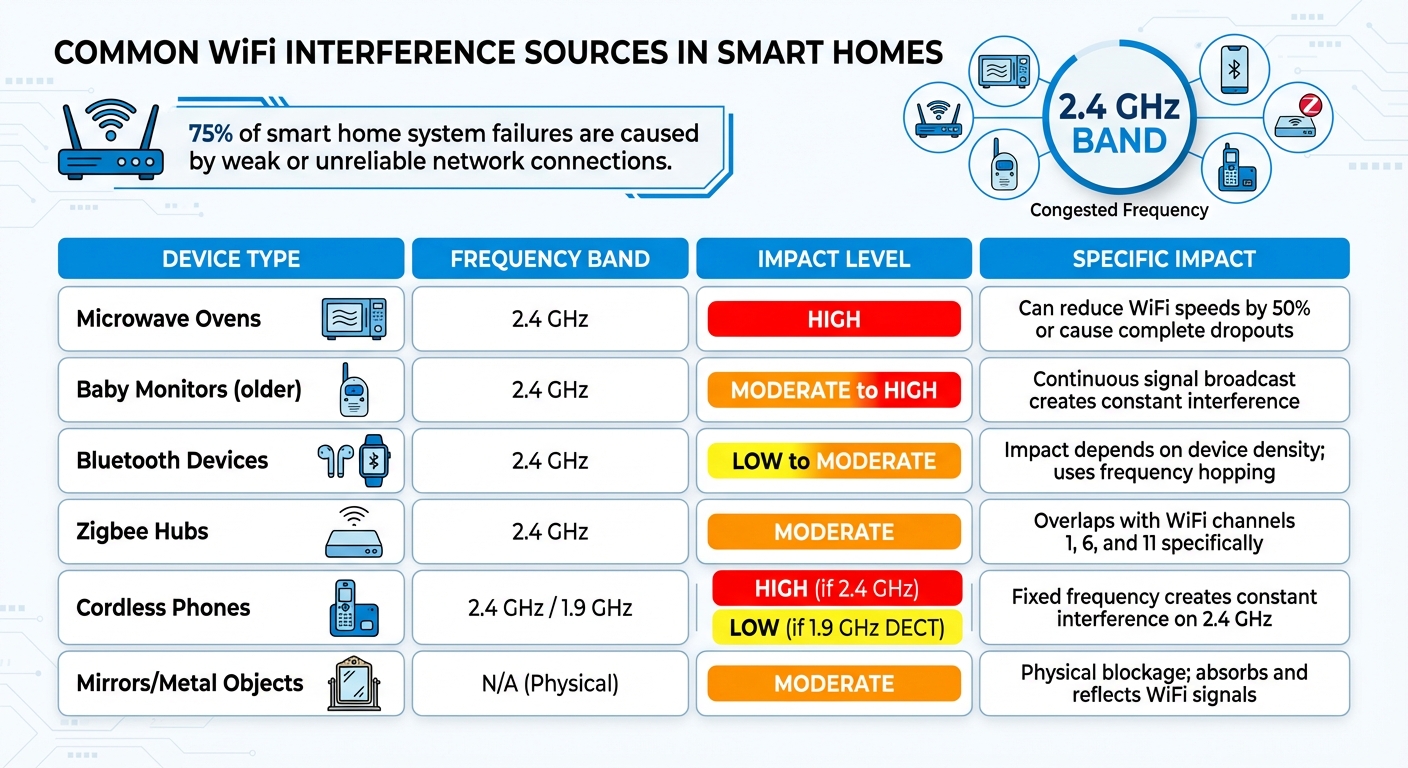
Common Smart Home WiFi Interference Sources and Their Impact
If your smart home devices are struggling to stay connected, interference might be the culprit. From your neighbor's router to your kitchen microwave, several factors can disrupt your WiFi. Let’s break down the most common causes.
In crowded areas like apartments or densely populated neighborhoods, nearby WiFi networks often interfere with your signal. Most routers in the U.S. operate on the 2.4 GHz band, which has 11 channels. However, only channels 1, 6, and 11 don’t overlap. If a neighbor’s router is broadcasting on the same or an overlapping channel, the resulting signal clash can slow down your connection.
Bluetooth devices - think headphones, speakers, or fitness trackers - also use the 2.4 GHz band. These gadgets employ frequency hopping, meaning they constantly switch channels. While each device is low-powered, having multiple Bluetooth devices active at the same time can create interference. Baby monitors and other household gadgets also add to the congestion on this frequency.
Older baby monitors and cordless phones are notorious for disrupting WiFi because they operate on the same 2.4 GHz band. Unlike Bluetooth devices, these gadgets stick to a fixed frequency, making the interference constant. Upgrading to newer models that use 1.9 GHz DECT, 5 GHz, or 900 MHz frequencies can help reduce this problem.
Smart home gadgets - like plugs, cameras, and light bulbs - often rely on the 2.4 GHz band because it offers better range and is cost-effective. While these devices don’t require much bandwidth, they continuously send broadcast and command signals, which can clog your network. As tech journalist Joe Rice-Jones explains:
Smart home devices don't need much bandwidth... but they send out lots of broadcast and command packets, and when airtime fairness is turned on in your router, that slows down the network for the devices that do need bandwidth.
Zigbee hubs, commonly used in smart homes, add another layer of complexity. These hubs exclusively use the 2.4 GHz band, overlapping with WiFi channels 1, 6, and 11. Placing a Zigbee hub too close to your router (within 3 to 6 feet) can cause significant interference, as both devices emit high-power signals. It’s estimated that weak or unreliable network connections are responsible for about 75% of smart home system failures.
Microwave ovens are another common source of interference. They emit radiation on the 2.4 GHz frequency, which can cut WiFi speeds in half. According to AT&T:
Microwave ovens have been known to reduce Wi-Fi speeds by half since they emit the same 2.4 GHz frequency as Wi-Fi devices.
LED lights, particularly those with inadequate shielding or dimmer switches, can also cause interference. While less predictable than microwaves, these lights can emit electromagnetic signals that disrupt your WiFi. Additionally, physical barriers like metal-backed mirrors, large fish tanks, and metal surfaces can absorb or reflect WiFi signals, creating dead zones in your home.
| Device Type | Frequency Band | Impact on WiFi |
|---|---|---|
| Microwave Ovens | 2.4 GHz | High; can reduce speeds by 50% or cause dropouts |
| Baby Monitors | 2.4 GHz | Moderate to High; continuous signal broadcast |
| Bluetooth Devices | 2.4 GHz | Low to Moderate; depends on device density |
| Zigbee Hubs | 2.4 GHz | Moderate; overlaps with specific WiFi channels |
| Cordless Phones | 2.4 GHz / 1.9 GHz | High (if 2.4 GHz); Low (if 1.9 GHz/DECT) |
| Mirrors/Metal | N/A | Physical blockage; absorbs/reflects signal |
Pinpointing WiFi interference starts with using free smartphone apps and your router's built-in tools. Identifying the source of the problem is key to applying the right solutions.
WiFi analyzer apps can scan nearby networks and reveal which channels are overcrowded. For Android users, WiFi Analyzer is a popular choice that provides real-time channel graphs and suggests better channels. iOS users can try Network Analyzer, which offers insights into both 2.4 GHz and 5 GHz band usage, along with signal-to-noise metrics.
To get started, download one of these apps, grant the required permissions, and scan the 2.4 GHz band. Walk around your home to track signal strength and interference from neighbors or devices like baby monitors. Look for channels with utilization over 50% and note signal strength - strong signals range from -30 to -50 dBm, while weak ones fall below -70 dBm. Sudden spikes may point to interference from Bluetooth devices or even a microwave in use. For example, in a crowded apartment, switching from channel 6 to channel 1 can reduce latency from 200ms to 50ms when the app detects no overlapping networks.
After identifying congested channels, double-check your network's overall health by evaluating SNR (Signal-to-Noise Ratio) and band usage.
The Signal-to-Noise Ratio (SNR) compares your WiFi signal strength to background noise, measured in decibels (dB). A good SNR falls between 25-40 dB for stable performance. If SNR drops below 10 dB, expect slow speeds and potential battery drain.
You can view SNR data without extra apps. Access your router's admin interface (usually at 192.168.1.1 or 192.168.0.1) and navigate to the wireless status section. Alternatively, on a Windows device, use the command netsh wlan show interfaces to see SNR and band details. For a clean 2.4 GHz network, SNR should be 30-40 dB. Overlap from neighboring networks or Bluetooth interference can lower this to 15-25 dB, while an active microwave might push it below 10 dB.
Band usage provides another clue about network congestion. WiFi analyzer apps often show the 2.4 GHz band operating at 70-90% capacity due to IoT devices and interference, while the 5 GHz band typically runs at 20-40% with fewer issues. The 5 GHz band also tends to deliver higher SNR (35-50 dB) because of its shorter range and reduced interference. If your 2.4 GHz SNR is low but the 5 GHz band shows an SNR above 20 dB, consider moving devices like laptops and phones to the 5 GHz band. This shift can free up the 2.4 GHz band for smart home devices that require it.
Here’s how you can stabilize your smart home connections, tackling issues like overlapping channels and physical barriers. From adjusting router settings to upgrading hardware, these fixes target the root causes of interference.
Set your router to use channels 1, 6, or 11 - these are the only channels that don’t overlap. Using a WiFi analyzer can help you identify which of these channels is least congested in your area, reducing interference. Keep in mind, however, that Zigbee devices could still cause some signal disruption.
The 5 GHz band operates on a separate frequency, making it faster and less crowded than the 2.4 GHz band. Shift devices like laptops, tablets, or streaming devices to 5 GHz to ease congestion. For homes with 20 or more connected devices, tri-band routers add an extra 5 GHz channel, offering even better performance. To avoid signal overlap, keep a 3–6 foot gap between your router and smart home hubs like SmartThings or Hubitat.
Once you’ve adjusted channels and upgraded your router, placement becomes key. Position your router in a central, elevated spot, away from walls, metal objects, and appliances like microwaves or refrigerators that can block or reflect signals. Avoid hiding it behind furniture or inside closets. An open, central location on the main floor usually provides the best coverage.
If you’re still dealing with dead zones or congestion, consider a mesh network. Mesh systems are ideal for larger homes, using multiple nodes to create a seamless network that eliminates weak spots. Each node acts as both a router and a range extender, ensuring consistent coverage throughout the house. Alternatively, WiFi extenders can boost the signal in areas with poor coverage, though they may reduce overall bandwidth since they use the same channel for both receiving and transmitting data. For homes with thick walls or multiple floors, mesh systems generally deliver more reliable results.
If you've tried every DIY fix in the book and still face WiFi issues, it might be time to bring in the pros. Persistent interference in challenging setups - like multi-level homes or crowded apartment complexes - often needs professional expertise. For instance, in apartments, neighboring networks can clog the 2.4 GHz band, making it hard to maintain a reliable connection. Similarly, in multi-floor homes, obstacles like metal heating systems, water pipes, or thick concrete walls can block signals no matter how much you reposition your router or upgrade your hardware. In these cases, experts can offer customized solutions that go beyond what standard DIY efforts can achieve.
Professional technicians bring specialized tools and know-how to the table. Using advanced techniques like RF monitoring, signal-to-noise analysis, and interference mapping, they can pinpoint exactly what's causing your WiFi headaches. This takes the guesswork out of the equation and ensures the problem is addressed at its root.
For smart homes packed with 2.4 GHz devices - like hubs, cameras, smart plugs, and Bluetooth gadgets - professionals can implement advanced fixes such as dynamic beamforming or self-interference cancellation (SIC) technology. These solutions not only improve signal strength but also help maintain fast data speeds, prevent battery drain, and eliminate annoying delays.

When DIY solutions fall short, TekDash's certified technicians are ready to step in and optimize your network. TekDash offers both on-site and remote support to tackle even the toughest WiFi challenges. Their services include WiFi and Ethernet installation, signal extension, network troubleshooting, and smart home device setup - all designed to ensure seamless connectivity throughout your home.
Here’s a breakdown of their pricing:
"TekDash was the only company with a vision to see past the generic connecting of wires and came up with an innovative solution for the installation of my home ethernet and all its components." - Larry P., Philadelphia, PA
Whether you need Cat6 cabling expertly installed through finished walls, a mesh system fine-tuned for maximum coverage, or smart devices integrated into a stable network, TekDash's team has the skills and tools to get it done right the first time.
WiFi interference in smart homes is a growing issue as billions of devices now compete for space on the 2.4 GHz band, which was originally designed for limited usage. With so many wireless devices in play - neighboring networks, Bluetooth gadgets, baby monitors, and smart plugs - interference is almost inevitable. This can lead to slower speeds and less responsive connections. Fortunately, many of these problems can be addressed with simple fixes or professional help.
To start, use a WiFi analyzer app to pinpoint the problem. From there, you can take steps like switching to non-overlapping channels (1, 6, or 11) on the 2.4 GHz band or upgrading to a 5 GHz or tri-band router to avoid congestion. Moving your router to a central, elevated spot away from interference sources like microwaves, metal objects, or thick walls can also make a big difference. For larger homes, mesh networks or extenders can help provide consistent coverage without dead zones. These adjustments often solve common issues and set the stage for deciding if further assistance is necessary.
If these DIY methods fall short, professional support can step in to tackle more complex interference problems. Experts with advanced tools can identify and resolve connectivity issues in challenging setups, such as multi-floor homes or densely populated apartment buildings. TekDash specializes in addressing these kinds of persistent challenges.
TekDash's certified technicians can fine-tune your network, whether it involves WiFi and Ethernet installation, mesh system deployment, or smart device setup. They offer both remote troubleshooting and on-site services to ensure your 5 GHz signals reach every corner of your home. Their goal is to deliver a smooth, reliable connection without the frustration of trial-and-error fixes.
Take control of your smart home’s connectivity: try these solutions or reach out to TekDash for expert help to eliminate buffering, dropped connections, and delays.
When your WiFi acts up, it’s usually due to interference or weak coverage. Interference can cause frequent disconnections, slow speeds, or signal drops, even if you're close to the router. Weak WiFi coverage, however, shows up as poor signal strength or dead zones in certain parts of your space.
To figure out what’s going on, try using tools like WiFi analyzers. These can help you identify crowded channels or pinpoint sources of interference, making it easier to tackle the problem.
When setting up your smart home, it's important to connect devices to the right Wi-Fi band. Devices like smart thermostats, security cameras, and doorbells work better on 2.4 GHz because it offers greater range and stability. On the other hand, devices that rely on faster speeds, such as smart TVs and gaming consoles, perform best on 5 GHz. Using the correct band ensures your devices stay connected and work efficiently.
If you've tried common solutions like repositioning your router, switching channels, or using extenders but still experience WiFi interference, it might be time to reach out to TekDash. Persistent issues can sometimes stem from more complex problems, such as physical barriers or conflicting devices, which are harder to pinpoint without expert help.
Certified technicians can assess your setup, identify hidden interference sources, and optimize your network's performance - especially in larger or more complicated environments.
Small placement and settings changes eliminate most WiFi interference and restore fast, reliable home connectivity.
Pinpoint causes of WiFi interference and restore stable connectivity with band switching, router placement, channel tuning, mesh systems, or pros.
Optimize your WiFi performance by selecting the best channels using analyzers to reduce interference and improve connectivity.